Write your first scene
Type a scene heading, action, a character and dialogue using only the keyboard. StageType does all the formatting.
The writing screen
Open the sample script for a safe practice copy. This walkthrough rewrites a few lines from its opening scene using the keyboard. Everything you type is saved in this browser automatically.
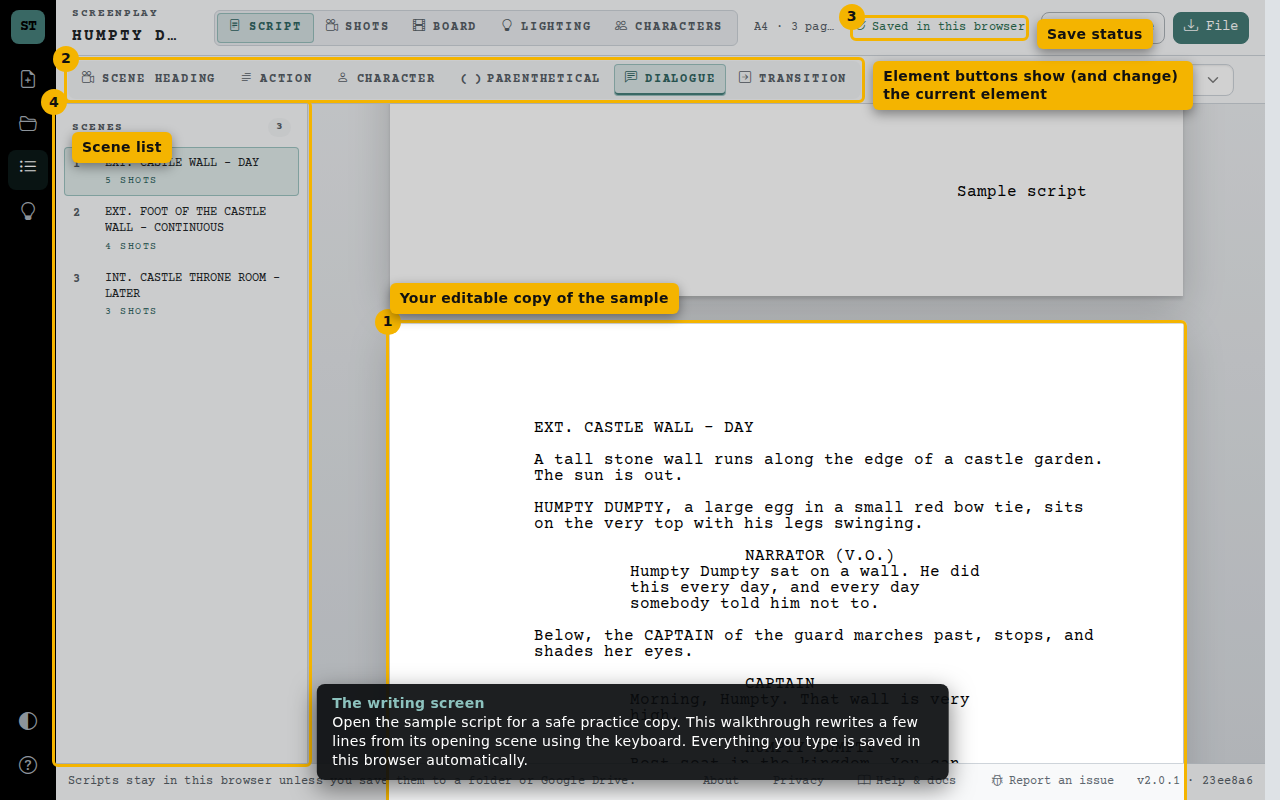
- Your editable copy of the sample
- Element buttons show (and change) the current element
- Save status
- Scene list
1. Scene heading
New scripts start on a Scene Heading. Type INT. or EXT., the place, a dash and the time of day.
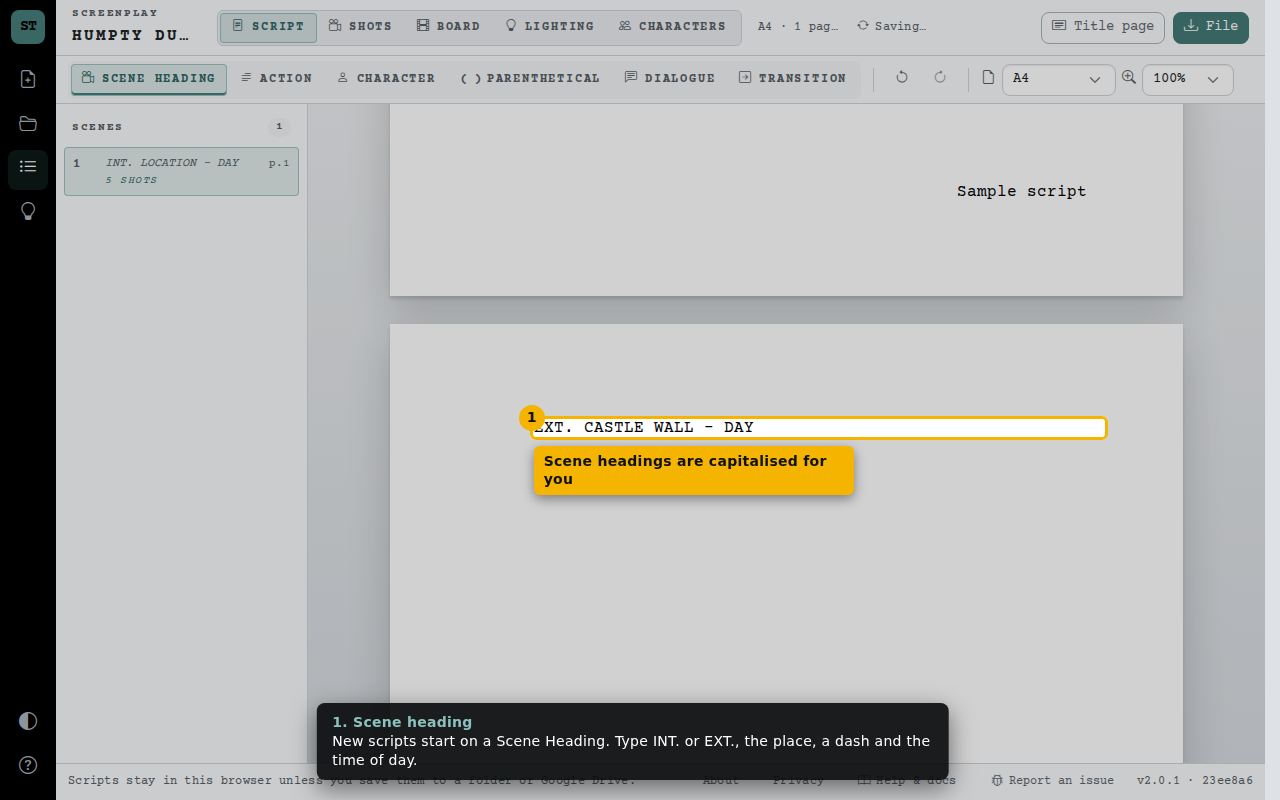
- Scene headings are capitalised for you
2. Action
Press Enter after a heading to write Action: what the audience sees and hears, in the present tense.
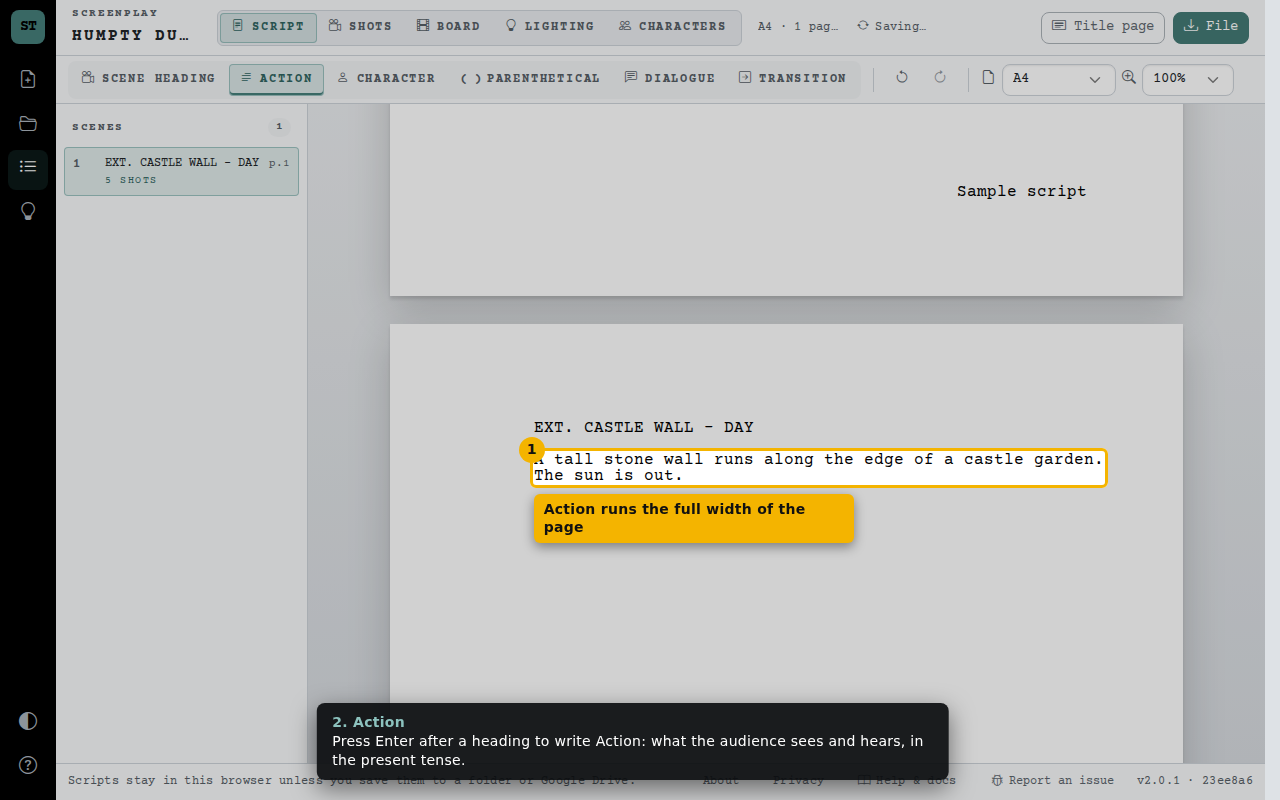
- Action runs the full width of the page
3. Character
On a new empty line press Tab (or Enter) to change Action into a Character cue, then type the name.
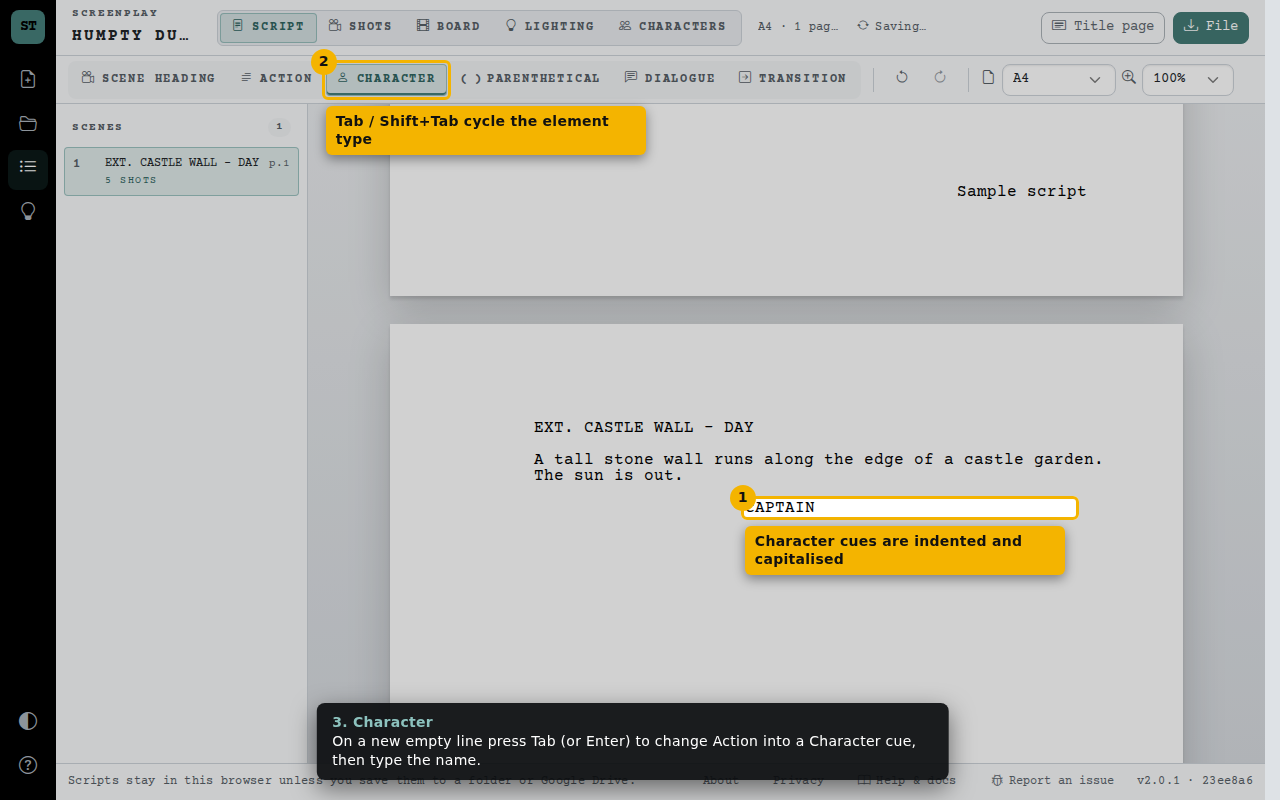
- Character cues are indented and capitalised
- Tab / Shift+Tab cycle the element type
4. Dialogue
Press Enter after a character to write their Dialogue. Use the Parenthetical button for short delivery notes.
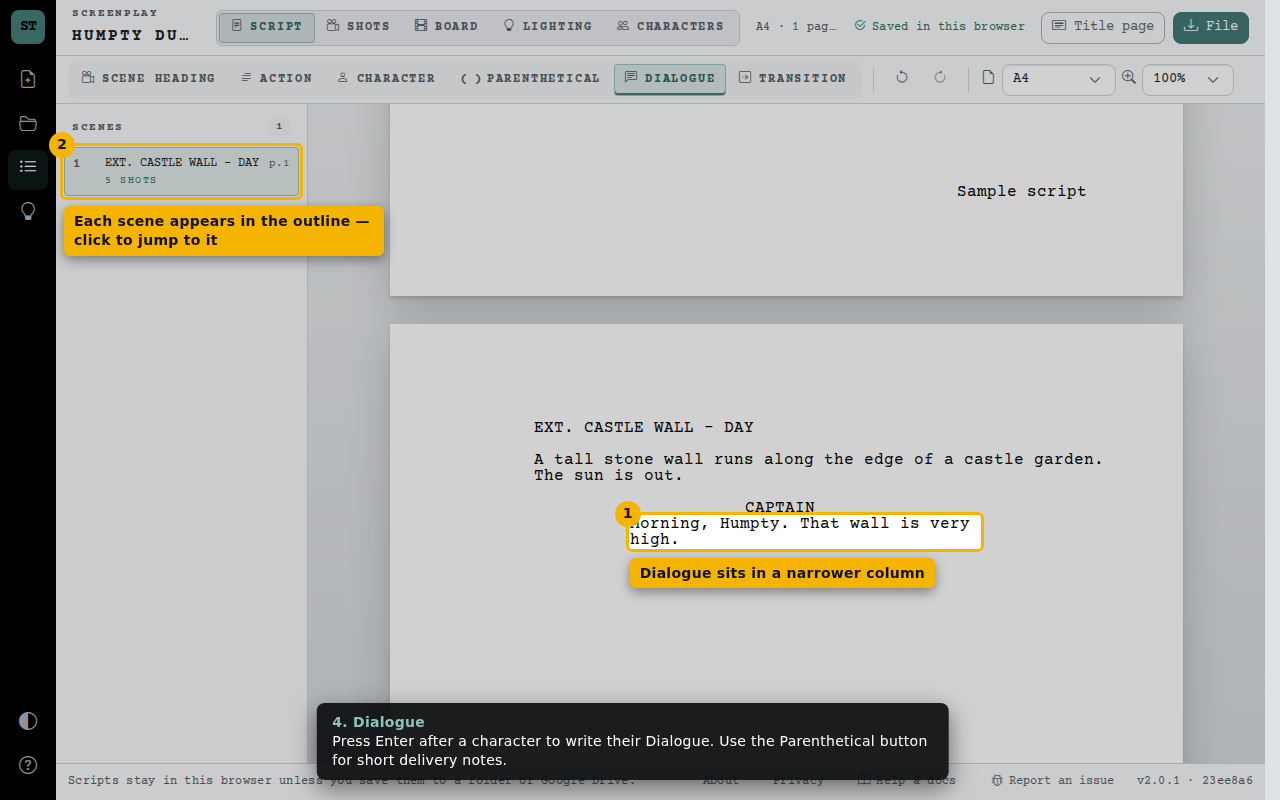
- Dialogue sits in a narrower column
- Each scene appears in the outline — click to jump to it
5. Keep the conversation going with Enter
After dialogue, Enter starts Action. Press Enter again on the empty line to start the next Character cue — no Tab needed.
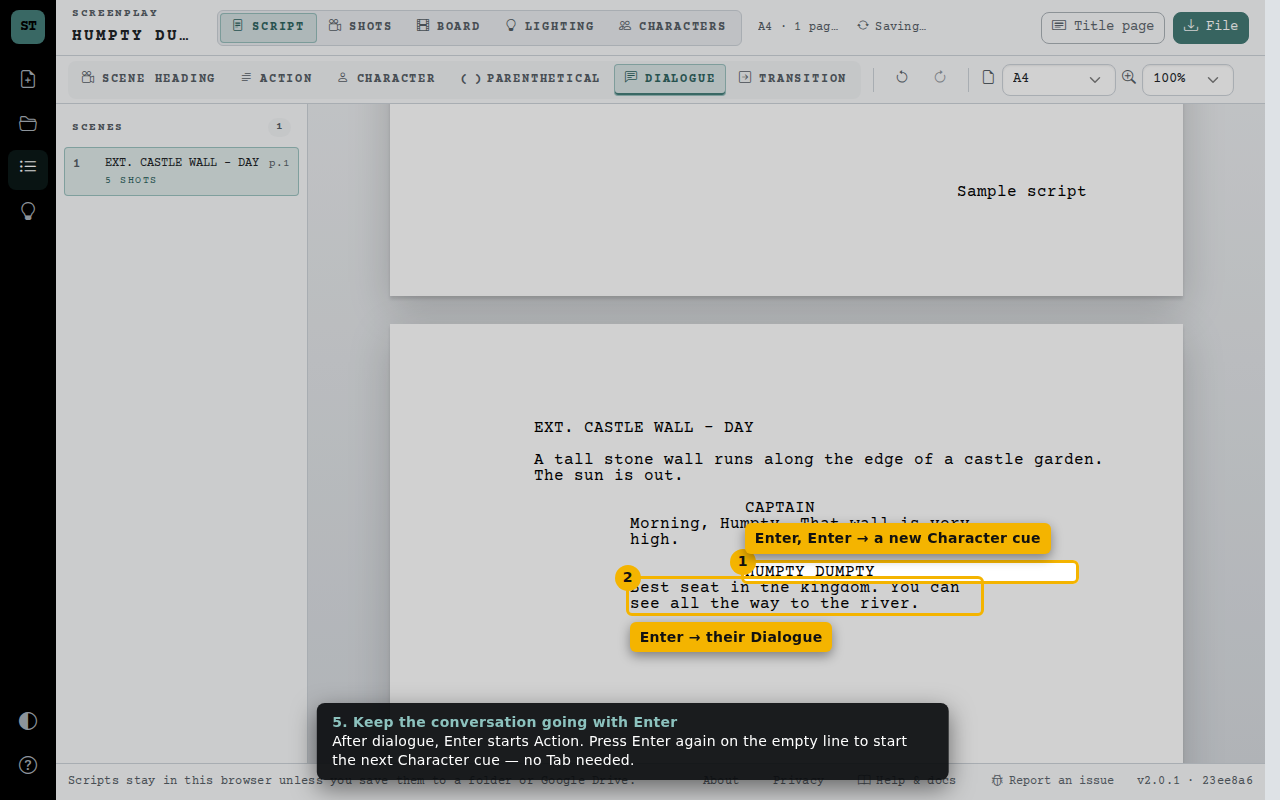
- Enter, Enter → a new Character cue
- Enter → their Dialogue
Keyboard shortcuts
Open the shortcut list from the side rail at any time.
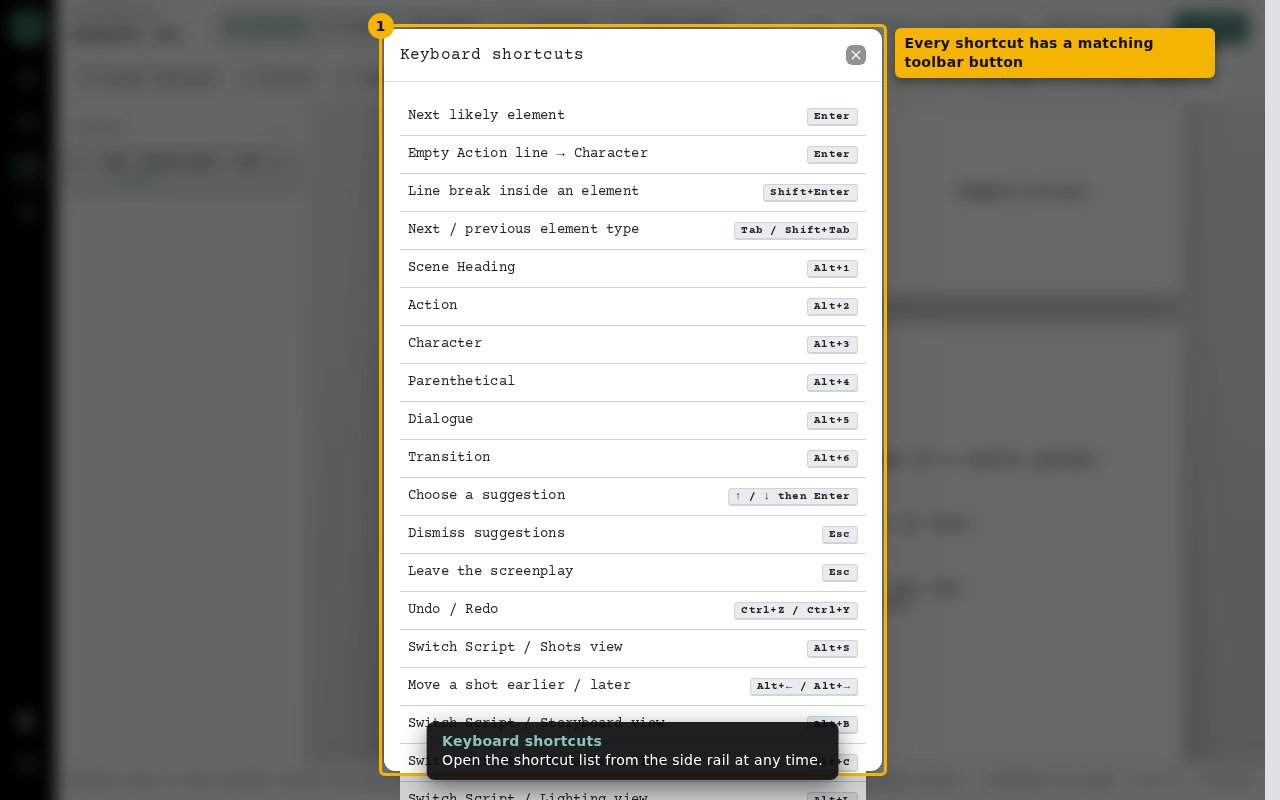
- Every shortcut has a matching toolbar button